BankManager Monitor
Want to be an Alpha tester?
Click the links below or scan the QR Code
IOS Version Android Version
BankManager Monitor Introduction and mini tutorial video
BankManager Monitor — Getting Started
A short tutorial for boat owners using BankManager Monitor, the companion app for BankManager marine battery monitoring.
Prefer a video? Watch the BankManager Install and Operations walkthrough on YouTube.
You can also open this guide anytime from About → Getting Started in the app (it also appears on first launch).
What the app does
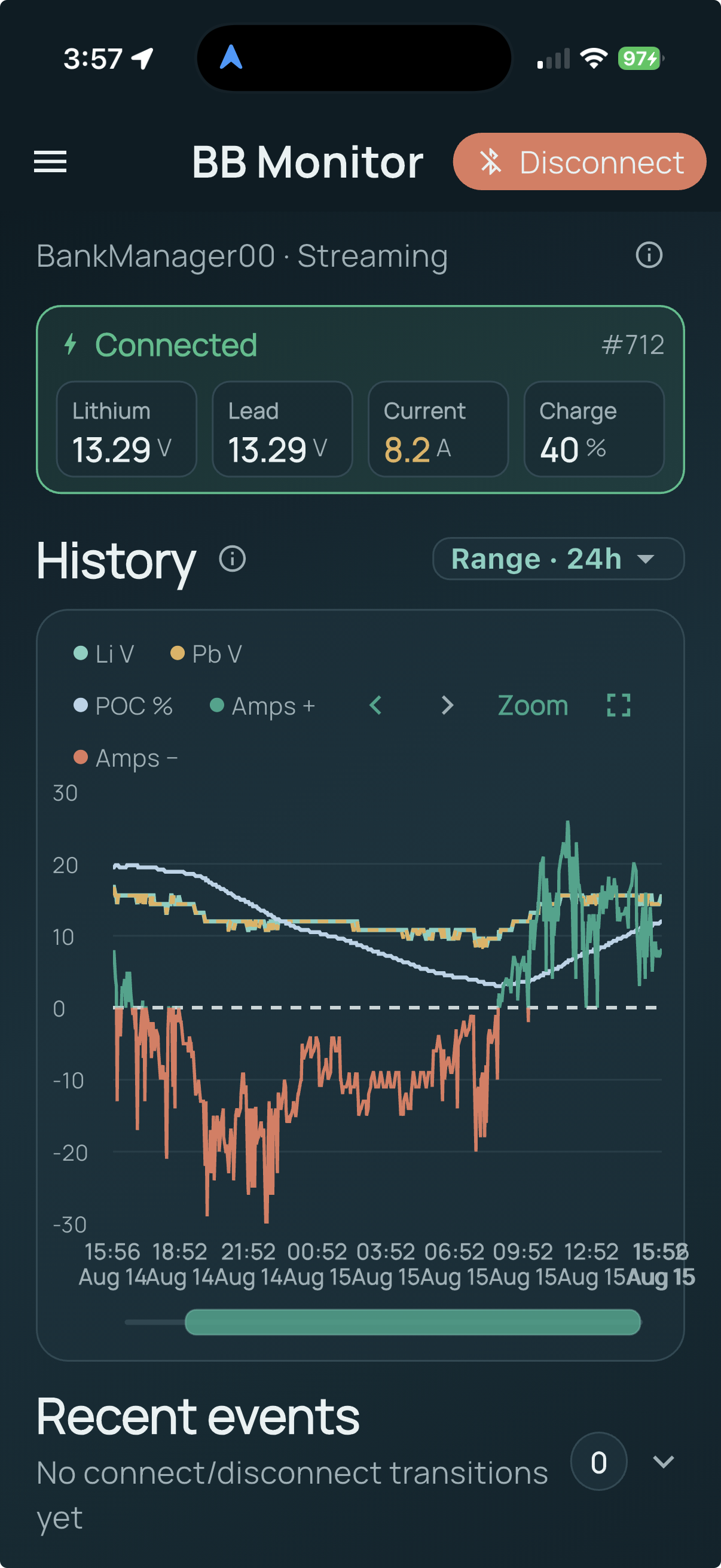
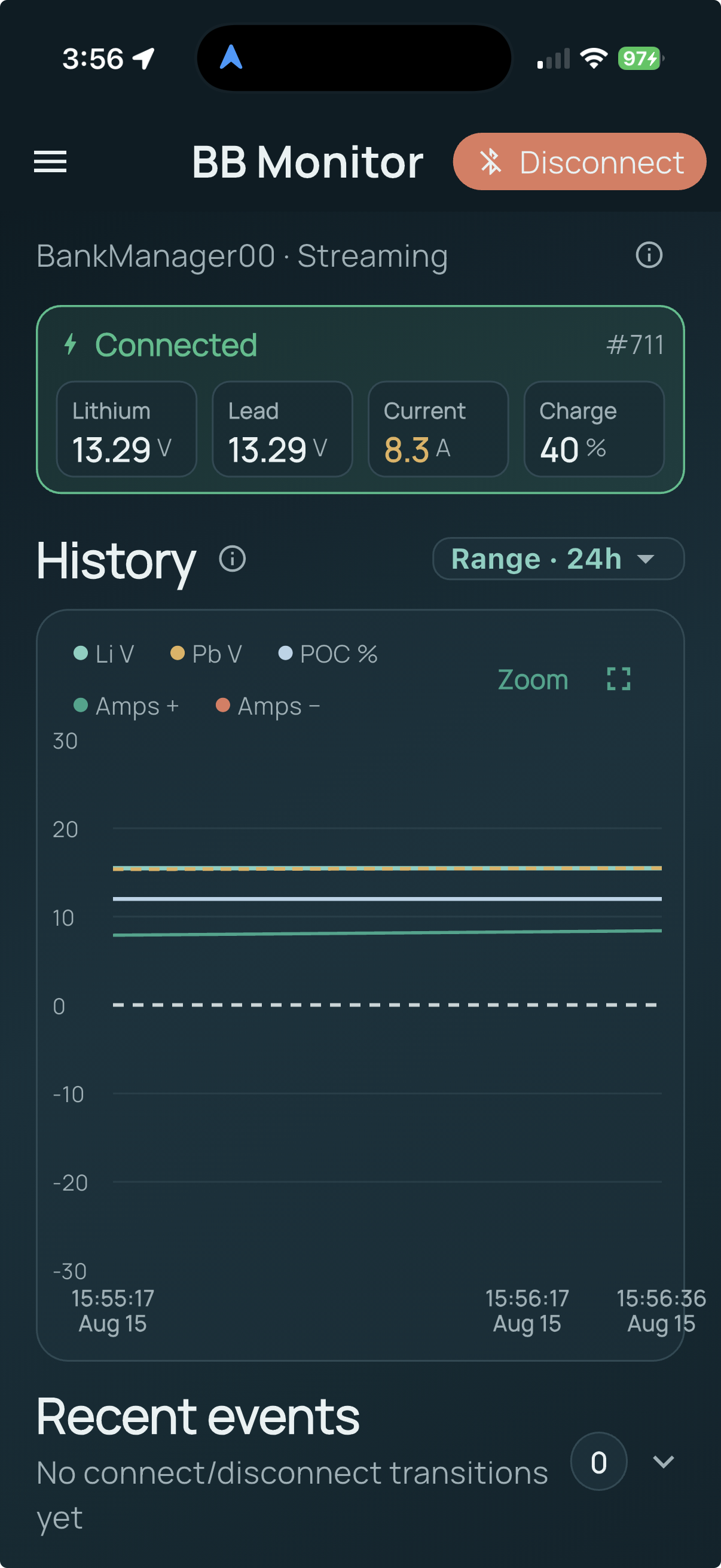
BankManager Monitor connects to your BankManager over Bluetooth and shows:
- Live lithium (Li) and lead-acid (Pb) voltages
- Current (amps) and percent of charge (POC)
- Whether the banks are connected
- A history chart backed by a local archive on your phone or computer
The app is read-only: it monitors the BankManager; it does not control charging or contactor settings.
Battery history stays on your device. It is not uploaded to DeTra’s servers as part of normal monitoring. You can export a file yourself if you want a backup or to share data.
What you need
- A powered BankManager within Bluetooth range
- BankManager Monitor installed (iPhone, iPad, Android, or Mac)
- Bluetooth turned on, and permission allowed when the app asks
On a boat, metal bulkheads and distance matter. Stay relatively close for the first connection.
First connection
- Open BankManager Monitor.
- Tap Connect (top of the Live screen).
- In the Connect BankManager sheet, wait for nearby devices, then select yours.
- The first time you connect, the app asks whether to allow background capture or use foreground only. You can change that later in Settings.
- When the status shows Li Connected, live tiles begin updating. If Bluetooth is not linked, tiles show — instead of stale numbers.
- After connect, the app may briefly load history from the BankManager’s onboard buffer. A small progress indicator can appear while that runs.
To stop streaming, tap Disconnect. Archived samples already saved on this device remain until you clear or export them.
Reading the Live dashboard
| Reading | Meaning |
|---|---|
| Li | Lithium / LFP bank voltage |
| Pb | Lead-acid bank voltage |
| Amps | Positive = charging (shown in green by default) · Negative = discharging (red by default) |
| POC | Percent of charge |
| Connected | Contactor / bank connection state from the BankManager |
Tap the ⓘ icon next to Connected / Not Connected for a short connection summary (BLE link and bank state).
Chart and history
- Use the Range control next to History (3h, 6h, 12h, 24h, 7d, 30d, 90d, All) to set how wide a time window you see. Range is the window size; older archive stays available to scroll into.
- The fullscreen control sits next to Range on the History header. In fullscreen, live chips appear on the chart when connected.
- Pan the chart left/right (drag), use the Older / Newer chevrons, or drag the timeline scrubber under the chart.
- Tap Zoom, then drag across the chart to brush a time span. While zoomed, you can still pan—the zoomed span stays the same width and slides across history. Tap Reset zoom to return to the normal range window.
- Tap a legend item (Li V, Pb V, POC %, Amps) to solo that series with its own Y scale; tap again to show all series. Pb is drawn as a dashed line so it is easier to tell apart from Li when they track closely.
- Gray bands on the chart mark periods when the BankManager reports the lithium bank disconnected (contactor open).
- If you turned on Fine-grained live capture in Settings, a Fine-grained checkbox appears under Zoom when the loaded series has those denser samples. Leave it on to see one-second detail; turn it off to view only the periodic history slots.
- Samples are stored locally so history can outlive the BankManager’s limited onboard ring buffer.
How long Live samples are kept is controlled in Settings (retention). Defaults are conservative; you can keep more history if you want.
Menu: Datasets, Insights, Settings, About
Open the menu (drawer) from the Live screen.
Datasets
- Browse Live capture and any archives you imported.
- Import… brings in a previously exported file.
- Switch views to compare Live data with an older trip or backup.
Insights
Summaries over 7 days, 30 days, or all archived data—for example energy (lithium Ah), POC behavior, charge quality, and link health. Insights need enough samples in the chosen range; capture or import history first if the page says there isn’t enough data yet.
Settings
- Export… — save Live capture as a JSON archive (for backup or sharing).
- Clear Live archive — permanently deletes Live samples on this device (BLE disconnects; imported datasets are kept).
- Fine-grained live capture — denser archive for short spikes (about every second, or sooner on voltage / current changes). Uses more storage. Exports can include a tag so later builds can filter those rows on the chart.
- Chart amp scale — Y-axis range for current (± amps).
- POC uses full chart height — map 0–100% to the full plot height when you prefer that layout.
- Chart colors — pick a color for each series (Li, Pb, POC, Amps +, Amps −) from presets, or Reset to defaults.
- Display timezone — samples are captured in GMT; choose ship time so chart labels follow you.
- On phone: Keep screen on (prevents auto-lock while the setting is on) and Capture while in background (see Phone tips).
- On Mac: hide-window vs quit behavior (see below).
About
Version, Alpha expiry (if applicable), Getting Started, the BankManager Monitor website, Privacy Policy, BankManager product page, and the install/operations video.
Phone tips
- Keep Bluetooth on while you want live capture.
- The first time you connect, you can allow background capture or choose foreground only. Change this anytime under Settings → Capture while in background.
- With foreground only, the app disconnects when you leave it and reconnects when you return.
- On Android, an ongoing notification appears while background capture is active (foreground service)—that’s how the OS allows background work. On some phones, set Battery usage for the app to Unrestricted for all-day logging.
- On iPhone, with background capture on, capture can continue while the app is in the background or the screen is locked. Force-quitting the app, turning Bluetooth off, or leaving the BankManager out of range stops capture until you reconnect.
- Keep screen on (Settings) prevents auto-lock whenever that switch is on, whether or not a BankManager is linked.
- If the app can’t find your BankManager, confirm nothing else is already connected to it, then try again closer to the device.
Mac tips
- Closing the window can leave the app running so capture continues, depending on your setting to keep the Dock / menu bar available.
- Use Quit (Settings or the app menu) when you want capture to stop completely. Archived history on the Mac is kept.
- The status item (menu bar) can reopen the window if you hid it.
Quick FAQ
Does this control the BankManager?
No. Monitoring and history only.
Where is my data?
On this phone or computer. Export creates a file you choose to save or share. See the Privacy Policy for details.
Why did live updates stop?
Disconnect, Quit, Bluetooth off, or out of range will stop the live stream. History already archived remains until you clear it.
Can’t see my device in the scan list?
BankManager powered, Bluetooth on, app permission granted, nearby, and not stuck connected to another phone or computer.
Why does the chart look jumpy or “sawtooth” after an old reconnect?
Newer builds stamp onboard history more carefully and can repair older Live archives once on launch. If you still see odd spikes from a file exported before that fix, re-export from a repaired Live capture or capture fresh history.
What is Alpha?
Some builds are labeled Alpha and may show an expiry date under About. Install a newer build before that date if you want continued use of that channel.
More help
- Hardware & operations video: YouTube — Install and Operations
- BankManager product page: marinedcac.com/pages/bankmanager
- Privacy: detraconsulting.com/privacy-policy
For support, contact the publisher listed in the app’s About screen / your website.
BankManager Monitor — companion app for BankManager marine battery monitoring.